Host-target architecture set-up
A robot arm needs two kinds of computing:
- The target (the microcontroller) is small and fast at one thing: switching pins, generating PWM signals and talking to motors in real time.
- The host (your laptop) is powerful and comfortable to program: it can do the heavy maths, such as kinematics, trajectories and vision.
The idea of this module is to let each side do what it is good at. The host does the thinking and sends simple instructions. The target executes them and reports back.
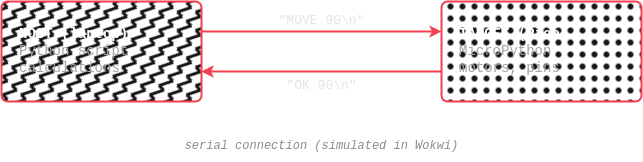
By the end of this module you will have a working communication channel between the two. Everything else in the workshop series is built on top of it.
What you will learn
- How to send text commands from a Python script on your laptop to a microcontroller
- How to read, parse and answer commands on the microcontroller
- How to design a small command protocol (commands, replies, errors)
- How to move a computation from the microcontroller to the host
The protocol rules
Both sides follow the same rules, which keeps the communication simple and easy to debug:
- Every message is one line of text ending with a newline (
\n). - The host sends a command: a word, optionally followed by arguments separated by spaces, such as
LED ONorM 90. - For every command, the target sends back exactly one reply line.
- A reply starts with
OKif the command worked, orERRfollowed by a short reason if it did not.
Tutorial: controlling an LED
Follow this tutorial first. It uses an LED instead of a motor, and you will then repeat the same steps for a motor in the assignment.
Getting Started
-
Install Vscode here
-
Inside Vscode navigate to the extensions tab:
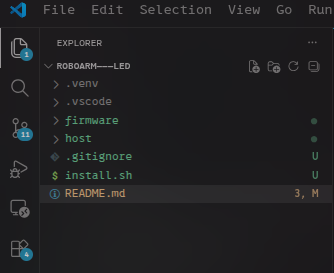
search for and install the wokwi extension. -
If you have not already, install python
-
for the next steps, you need to use the terminal (in vscode). open it by going to
terminal, thennew terminal. -
Clone the repository
git clone https://github.com/matt-rbt/RoboArm---LED.git -
Dependencies all python projects contain some dependencies, these are other modules and and software packages our projects borrow from. This tutorial contains a standard install script that installs these for you.
bash install.shEssentially, this installation script installs all the dependencies located in
requirements.txt.
Start the Wokwi simulator
-
Open the Wokwi simulation tab.
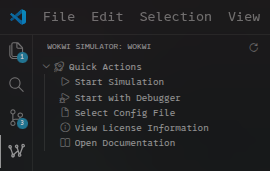
-
Click on
Start Simulation
The simulator is configured to expose the serial port on:
rfc2217://localhost:4000
Step 1: the target code
In firmware/main.py:
from machine import Pin

led = Pin(15, Pin.OUT)

while True:
    line = input().strip()          # wait for one line from the host

    if line == "LED ON":
        led.value(1)
        print("OK")
    elif line == "LED OFF":
        led.value(0)
        print("OK")
    else:
        print("ERR unknown command")
input() waits until a full line arrives, and print() sends a line back. That is all the target needs.
Step 2: the host code
On your laptop, create a file host.py:
import serial

PORT = "rfc2217://localhost:4000"   # the simulated board in Wokwi

ser = serial.serial_for_url(PORT, baudrate=115200, timeout=2)

def send(command):
    """Send one command and return the target's reply."""
    ser.write((command + "\n").encode())
    return ser.readline().decode().strip()

print(send("LED ON"))     # expected: OK
print(send("LED OFF"))    # expected: OK
print(send("HELLO"))      # expected: ERR unknown command
Step 3: run both sides
- In VS Code, start the Wokwi simulator and keep the simulator tab visible. If it is hidden, the simulation pauses and your script will time out.
- Start the target code in the simulator.
- Run
python host.pyin a terminal.
You should see the LED switch on and off in Wokwi, and the three replies printed in your terminal.
Checkpoint
- The LED responds to
LED ONandLED OFF - An unknown command gives
ERR unknown commandand the target keeps running - You can explain which code runs on the host and which on the target
Later, when you use a real board, you only change one line: replace the PORT value with the real port, for example "COM5" on Windows or "/dev/ttyACM0" on Linux. The rest of the code stays the same.
Assignment: controlling a motor
Now do the same thing with a motor. You will build the same two programs, but the target moves a servo motor and the host calculates the movement.
Part 1: Firmware
In this section you will write the firmware that recives commands from the host (your pc). The code you write will be tested with a standard host script provided in the assignment repository.
-
Connect a servo to pin GP16 in Wokwi.
-
Semantics Your programme must understand these commands:
Command What it does Reply MOVE <angle>Moves the servo to the angle (0 to 180 degrees) OK <angle>GETReports the current angle OK <angle>It must also handle bad input without crashing:
Input Reply Unknown command, e.g. JUMPERR unknown commandMissing or non-numeric angle, e.g. MOVE abcERR bad argumentAngle outside 0 to 180, e.g. MOVE 400ERR out of range -
Run the test script The test host script will run and tell you exactly where your programme has failed. If it succeeds move on to the next part.
Part 2:Host
The third part is the point of the module: the target does not know anything about smooth movement. It just moves where it is told. The host does the calculation, which is exactly how we will handle kinematics for the arm later.
The goal for this part is to make the motor move between -90 and 90 (or 0 and 180) in a smoothe wavy motion, while also printing the current angle it receives from the microcontroller.
Your host script must:
- Connect to the target and provide a
send(command)function like in the tutorial. - Provide
move(angle)andget_angle()functions that usesend(), return the angle as a number, and raise an error if the target answers withERR. - Calculate a smooth movement on the host. Write a function
smooth_path(start, end, steps)that returns a list of angles that gradually go fromstarttoend. Then send those angles one by one, with a short pause (around 20 ms) between them.
What to hand in
- link to your github repository
- A short screen recording or screenshot showing the servo moving smoothly and the replies in your terminal
- A test of each error case from the tables above, with the output
Checklist
-
MOVE 90moves the servo and returnsOK 90 -
GETreturns the current angle - All three error cases return the correct
ERRreply and the target keeps running -
move()raises an error in Python when the target replies withERR -
smooth_path()produces a gradual movement instead of a sudden jump - The host script runs the whole demo from start to finish with one command
Stretch goals
- Make the movement ease in and out (slow at the start and end, faster in the middle)
- Measure how long one command takes to travel to the target and back, and print it
- Add a second servo and a command such as
MOVE 1 90for joint 1
What comes next
In the first workshop you will learn how to structure your target code properly: classes for joints, functions and imports, threading, data structures, and JSON for sending richer messages. You will use the code from this assignment as a starting point, so keep it safe!